
Getting Started
Much of the app is self‑explanatory and designed to be intuitive, so we encourage you to explore and familiarise yourself with it at your own pace.
However, for those who would prefer more detailed step‑by‑step guidance, we’ve provided a guide that walks you through the key features. In areas where a little extra support may be helpful, we have included images and additional guidance to make things even clearer.
If you require any support, please don't hesitate to contact us.
1. Accessing the App
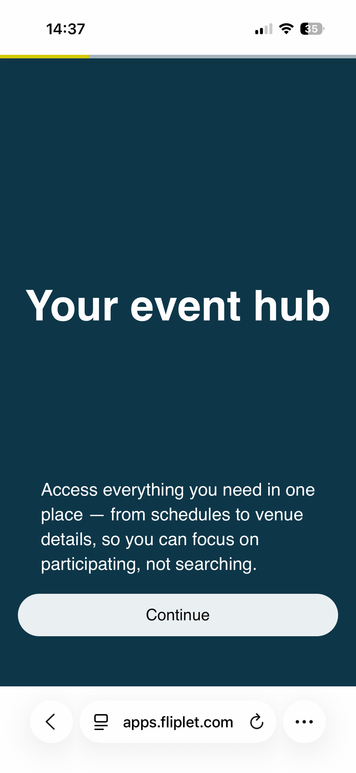
- Click this link.
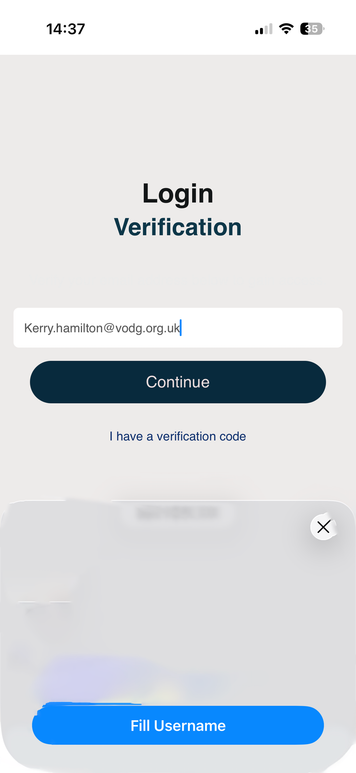
- Enter your email address.
- Enter the verification code sent to you.
- Review and accept the privacy policy and terms.
✅ You are now logged in.
2. Save the App to Your Phone (Recommended)
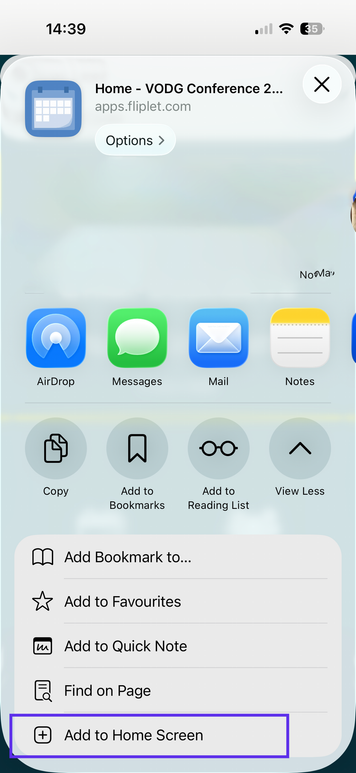
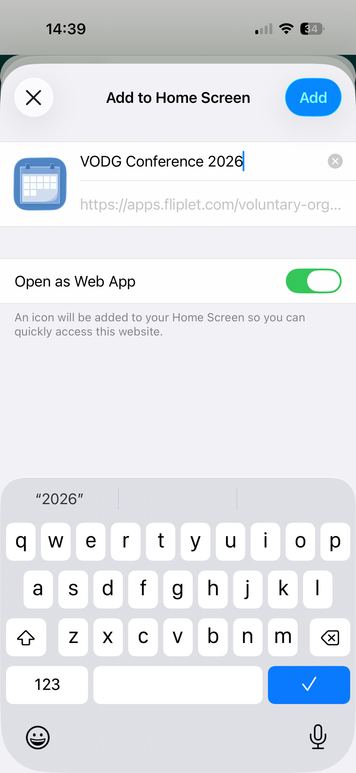
Add it to your home screen
- Open the app link on your phone (Safari or Chrome)
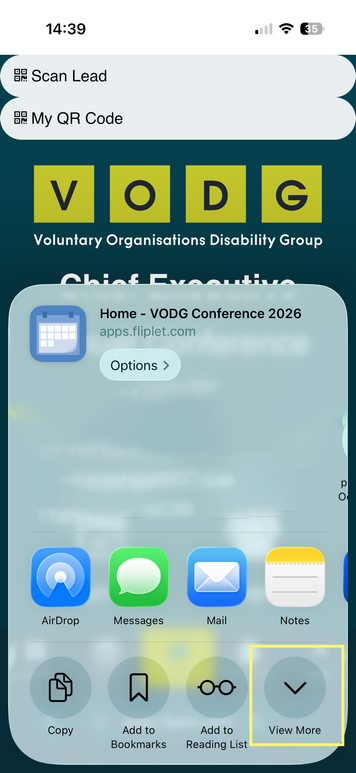
- Tap the Share or Menu (⋮) button
- Select “Add to Home Screen”
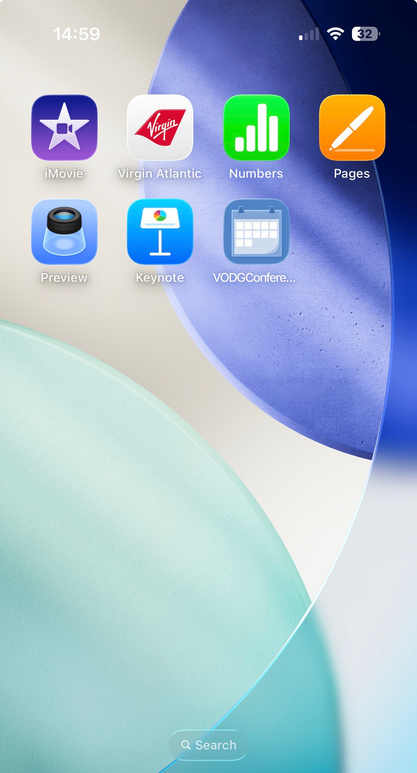
✅ Once added, you can:
- Open it like any other app
- Quickly jump in and out during the event
✅ This avoids needing to log in every time.
Please note that different phones may follow a slightly different process to allow you to save to your homepage. The below is based on an iPhone 17 model.
3. Homepage Overview
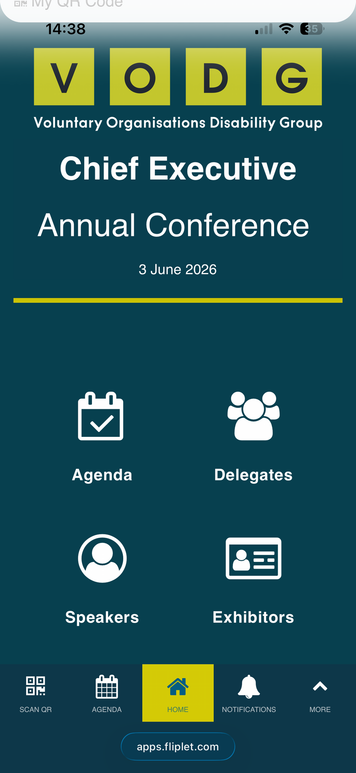
The homepage includes four main sections:
- Agenda
- Delegates (People)
- Speakers
- Exhibitors
You’ll also see:
- Notifications
- Menu (arrow icon) for additional features
4. Key Features
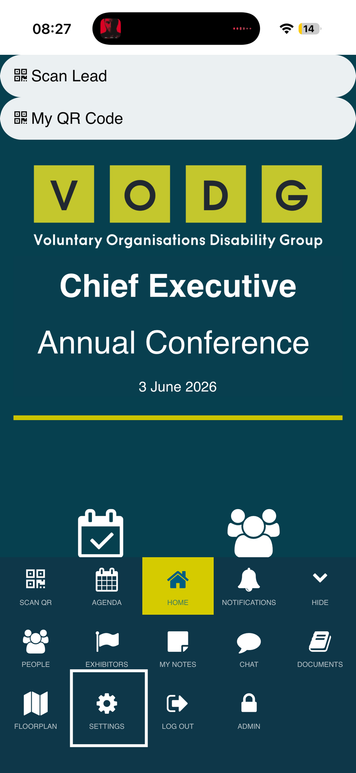
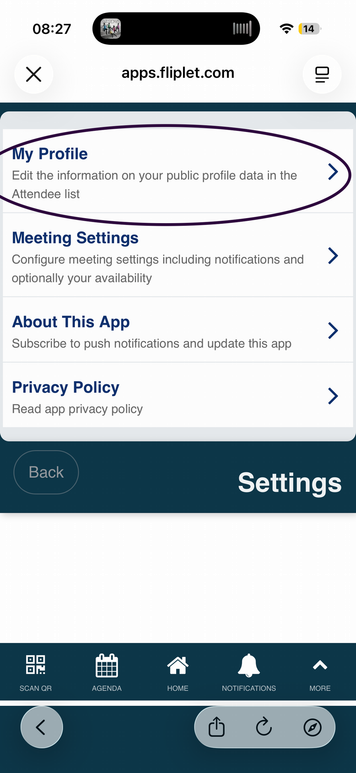
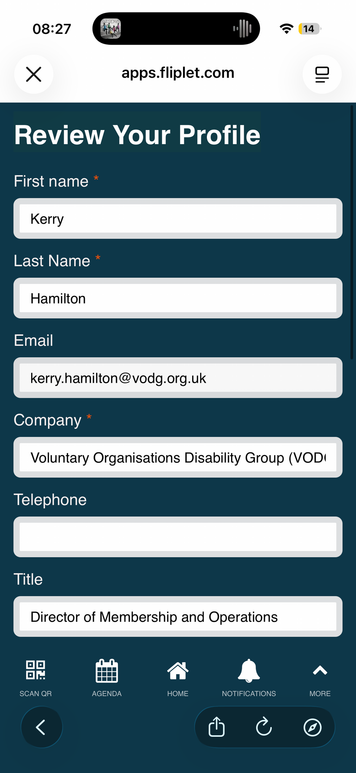
⚙️ Settings & Profile (Important)
Update your profile to get the most from networking:
- Add:
- Name
- Organisation
- Job title
- Profile photo ✅ (strongly recommended)
- LinkedIn profile
- Bio
- Manage notification preferences
- Access privacy policy and app info
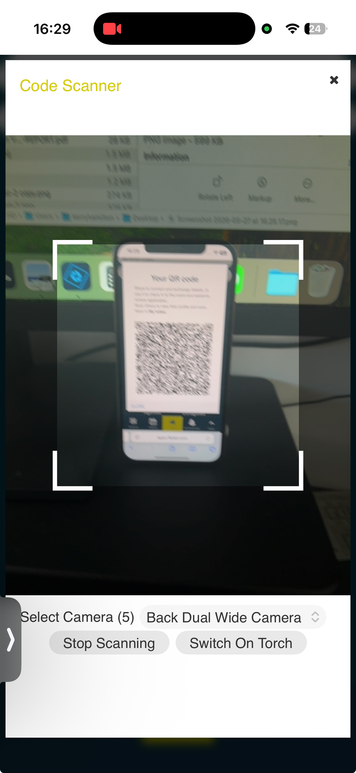
🔎 QR Code Scanner
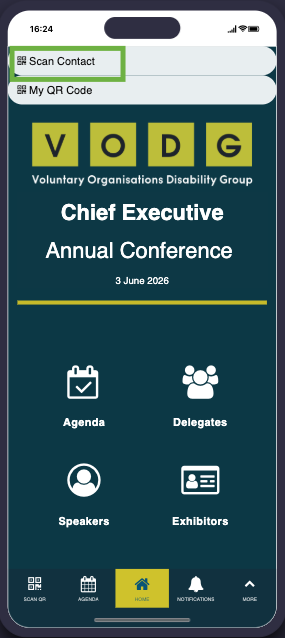
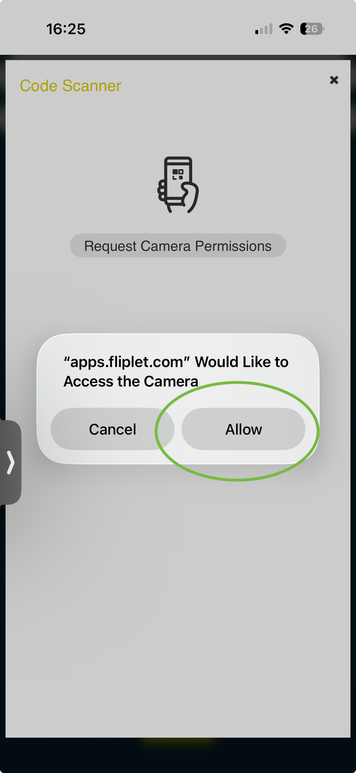
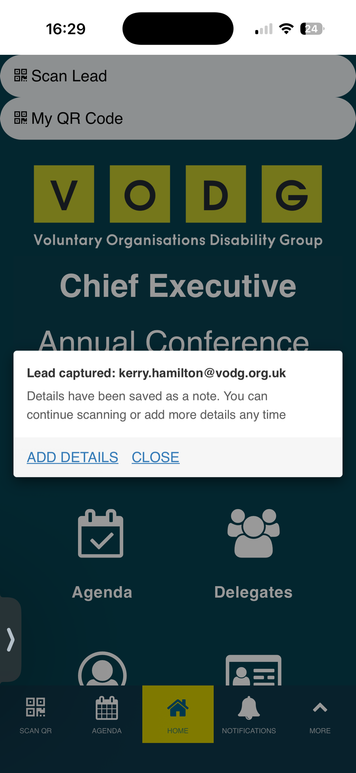
- Tap Scan QR Code.
- Scan another attendee’s code to:
- View their details
- Save them as a contact
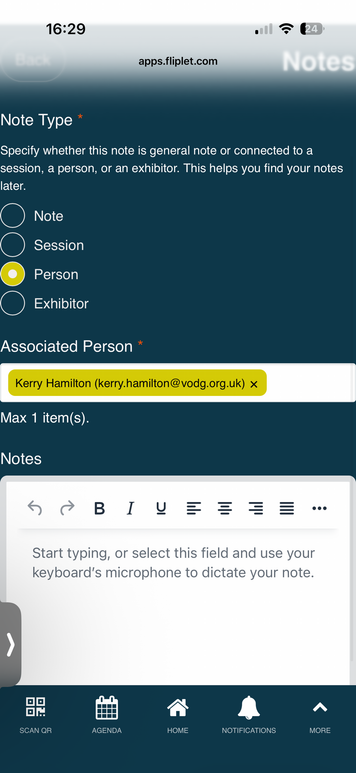
- Add notes
👉 You can also share your QR code via “My QR Code” so others can connect with you.
📅 Agenda
- View the full event programme with times and locations.
- Some sessions require RSVP:
- Tap RSVP to secure your place.
- You can see who else is attending.
- Tap a session to:
- View speaker details
- Read session info
- Add notes
- View location on the floor plan
👥 People (Delegates & Speakers)
- Browse all attendees, including:
- Speakers
- Delegates
- Exhibitors
- Sponsors
- Staff
- Tap a profile to:
- View details
- Start a chat
- Learn about their organisation
🏢 Exhibitors
- View a list of all exhibitors.
- Each profile includes:
- Organisation details
- Booth location
- Options to:
- Request a meeting
- Send a message
- Add notes
✅ Great for networking before, during, and after the event.
💬 Chat
- Message other attendees in real time.
- Works like a standard messaging app.
- View and continue past conversations.
📄 Documents
- Access event materials such as:
- Conference brochure
- Presentation slides (uploaded after sessions)
- Tap a document to view details and open it.
🗺️ Floor Plan
- Find:
- Session rooms
- Exhibitor stands
- Registration desk
- Food areas and facilities
✅ Helps you navigate the venue easily.
📝 Notes
- Create notes linked to:
- Sessions
- People
- General thoughts
- Notes can be exported for up to 2 weeks after the event.
5. Notifications
- Receive real-time updates during the event.
- Check the Notifications section regularly.